
Keyboard Shortcuts: Using Custom Shortcuts
Historical reference: keyboard Shortcuts: Using Custom Shortcuts.
A reference from an earlier chapter
This material preserves the original Textual documentation and may describe older versions, former services, or superseded policies. It is not a statement of current availability or new Blendbyte commitments.
For current guidance: Keyboard shortcuts.
On this page
This guide will instruct you how to (re)assign a keyboard shortcut in Textual.
Step 1: Find the Old Shortcut
To assign a keyboard shortcut to an action, you must know the exact title of the menu item which performs the action.
You can use Textual's Help menu to search for the title of the menu item.
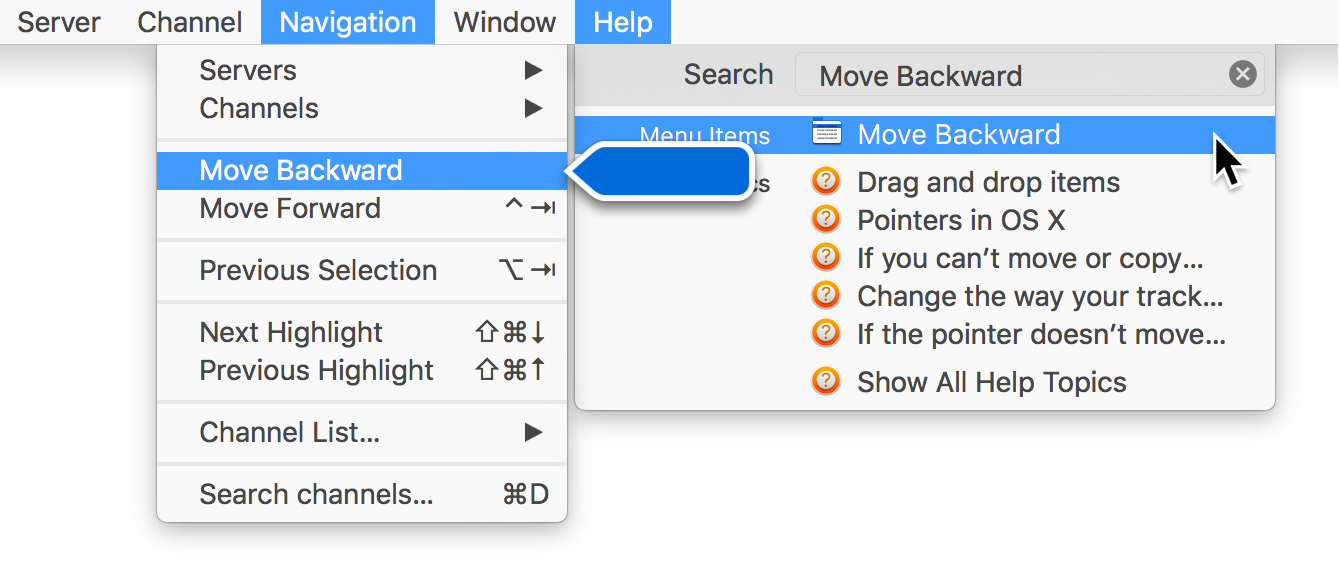
If the Help menu is unable to locate the menu item for the action that you are interested it, then it may be present in a context menu. A context menu is a menu that is displayed when you control click (right click) specific items.
Step 2: Navigate to System Preferences
-
Open System Preferences using Spotlight and select Keyboard
-
Select Shortcuts near the top of the preference pane
-
In the far left column of the selected tab, click App Shortcuts
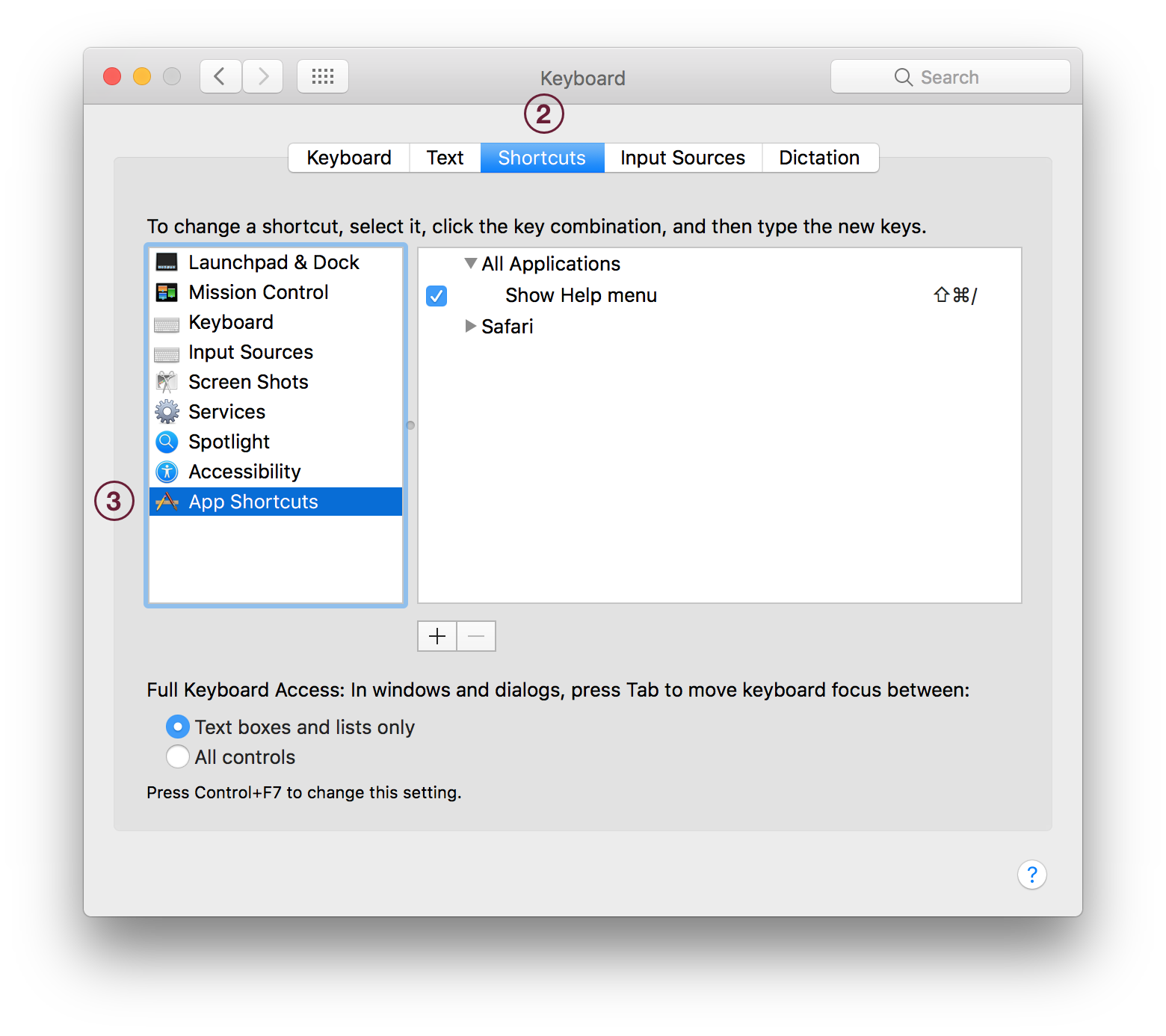
Step 3: Define the Shortcut
-
Press the plus sign (+) to insert a new entry
-
Select Textual as the application in the window that appears
-
Enter the title of the menu item
-
Define the keyboard shortcut you prefer by pressing the combination on your keyboard
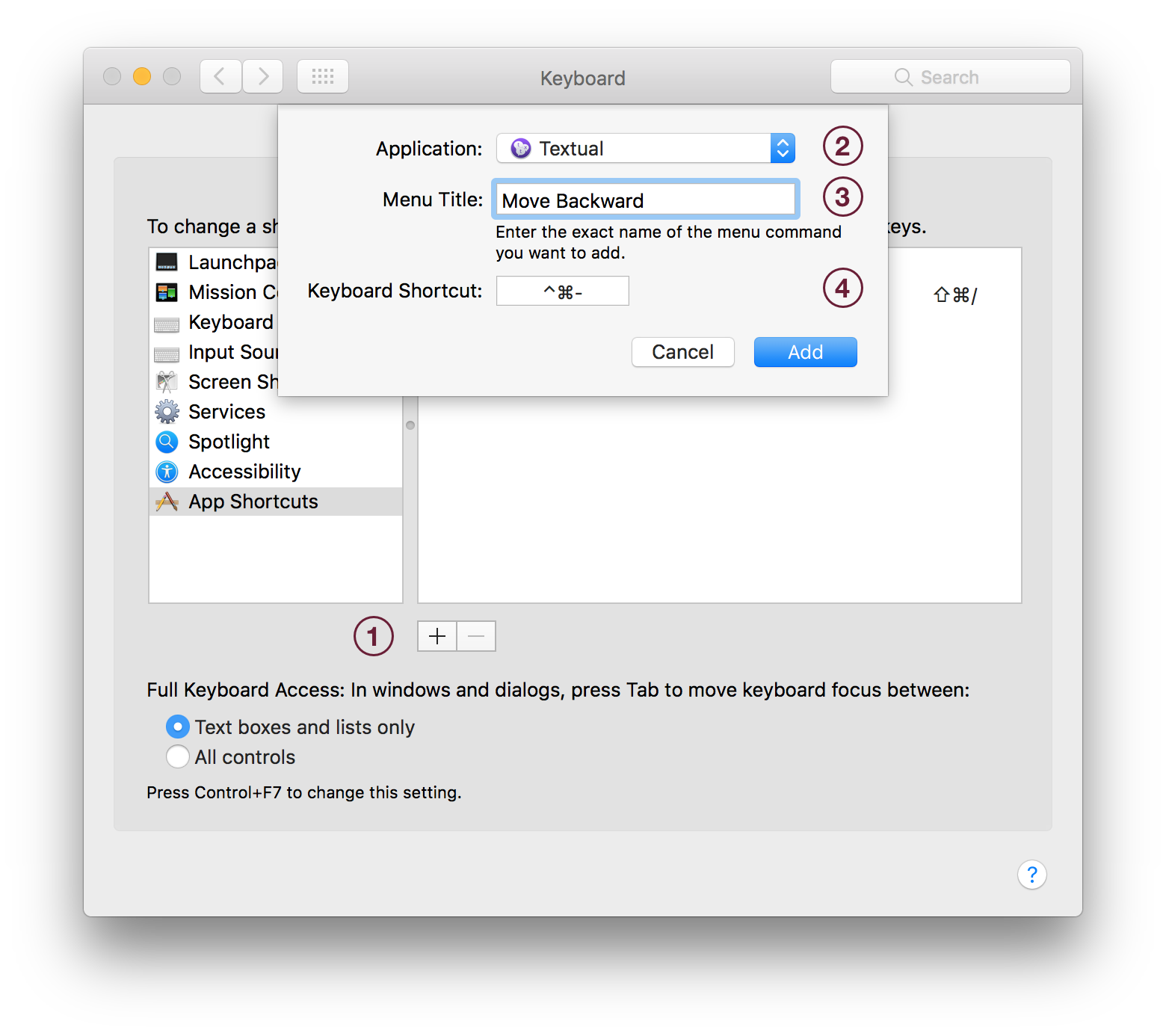
Step 4: Test It
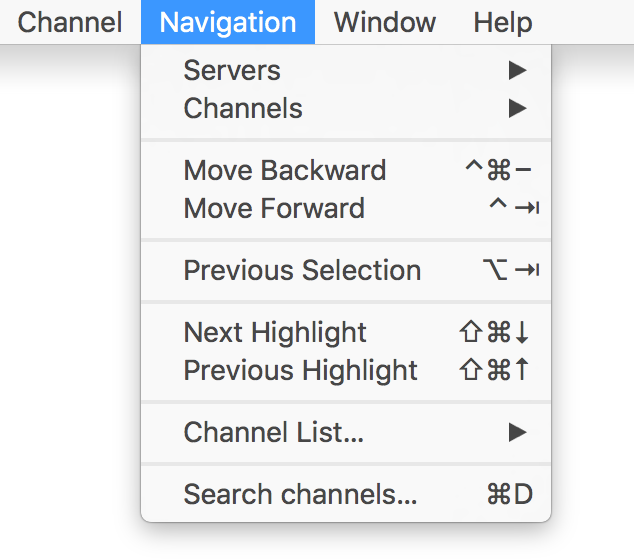
Try using your new keyboard shortcut in Textual
Keep reading
Source material
Original Codeux material preserved from the knowledgebase snapshot of 9 September 2026. Formatting and internal links have been adapted for this site.
Need a hand? Contact us about this guide.