
Stopping your Mac from Going to Sleep
Historical reference: stopping your Mac from Going to Sleep.
A reference from an earlier chapter
This material preserves the original Textual documentation and may describe older versions, former services, or superseded policies. It is not a statement of current availability or new Blendbyte commitments.
For current guidance: ZNC, sleep, and staying connected.
On this page
When you leave your Mac alone for a few minutes, it goes to sleep to conserve battery life. When your Mac is asleep, the Internet is disconnected. For those that want to remain connected to IRC at all times, this can be an inconvenience. The Caffeine addon can be installed to instruct your Mac not to sleep while you are connected to IRC.
Prerequisites
The Caffeine addon is designed to keep your Mac awake while the lid is open. If you want your Mac to stay awake while the lid is closed, then a dedicated solution such as NoSleep (or other) is required.
Install Caffeine
Launch the “Textual Extras” installer by entering /getscripts into the main input text field.
An installer that is visually similar to the following will appear:
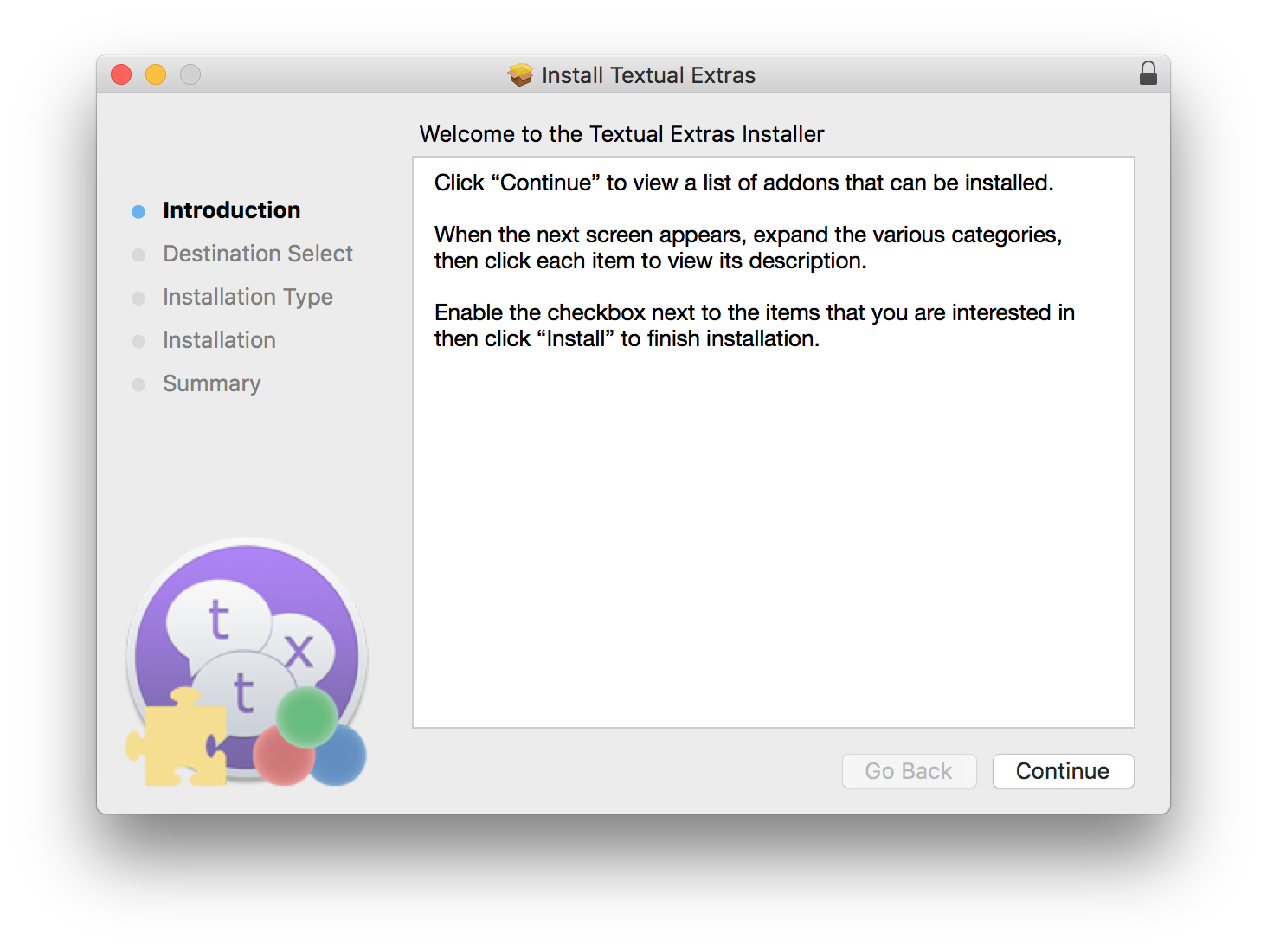
- Click Continue to reveal a list of addons that can be installed.
Expand the “Extensions” category and check the checkbox to the left of “Caffeine.”
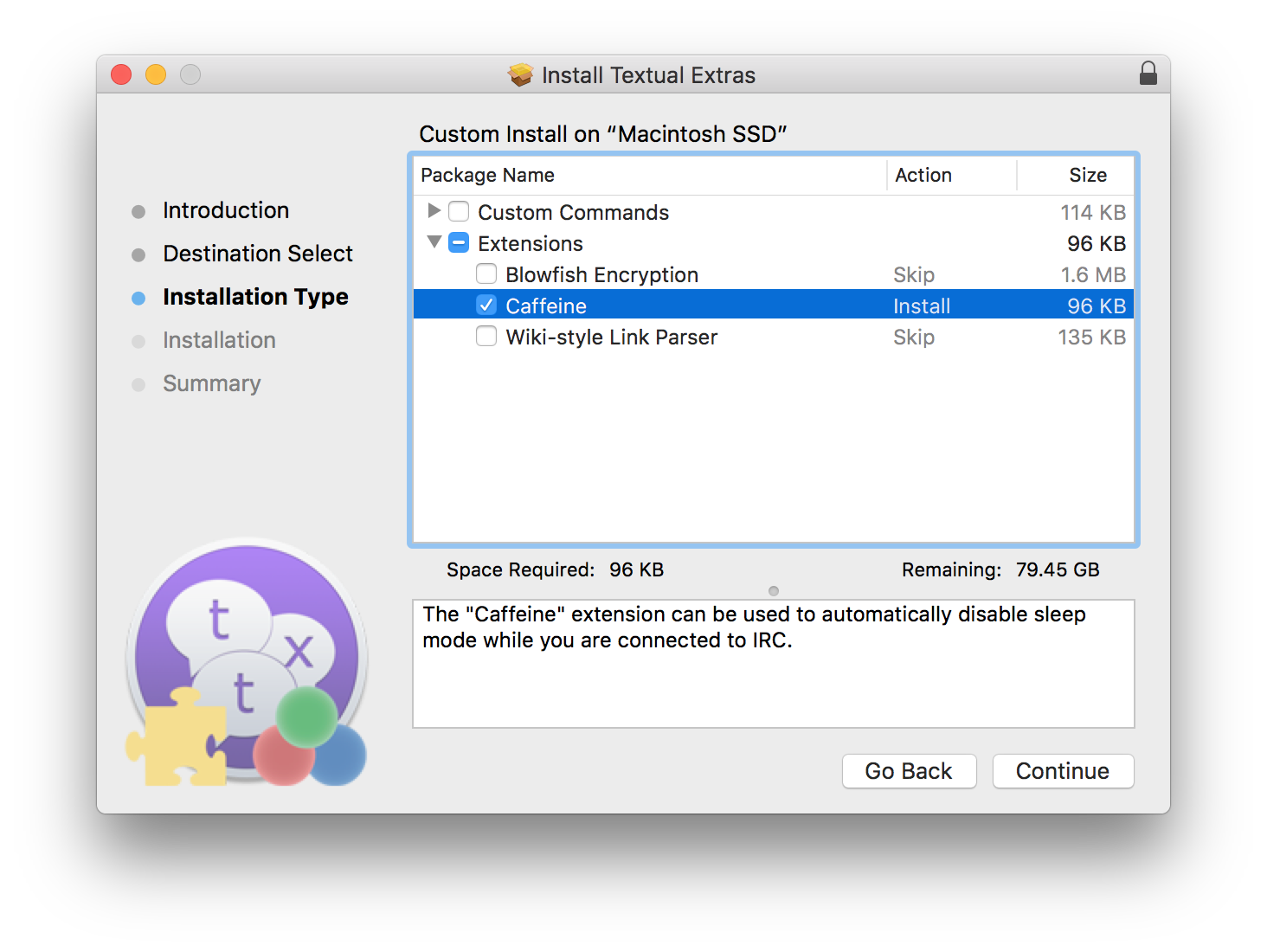
Continue through with the installation then restart Textual.
Enable Caffeine
Caffeine can be enable by following these steps:
-
Open Preferences using the keyboard combination Command Comma
-
In the window that appears, move focus to the Addons section of the navigation bar
-
Click the item labeled Sleep Mode Management in the menu that appears
-
Check the item labeled Disable sleep while Textual is connected
Keep reading
Source material
Original Codeux material preserved from the knowledgebase snapshot of 9 September 2026. Formatting and internal links have been adapted for this site.
Need a hand? Contact us about this guide.