
The original Textual 7 upgrade
The 2017 upgrade scheme, its eligibility guides, and historical purchase conditions.
A reference from an earlier chapter
This material preserves the original Textual documentation and may describe older versions, former services, or superseded policies. It is not a statement of current availability or new Blendbyte commitments.
On this page
Textual 7 Upgrade
Textual 7, the next generation of the app, is now available as a paid upgrade.
To learn more about the upgrade, see:
What's new in Textual 7
Notifications
Textual 7 introduces one of the most requested features: Per-channel notifications. You can now control which notification is enabled, in which channel. For example, in the channel #help, you can configure Textual to notify you when a new message appears, while in #spam, nothing happens at all.
Accompanying this feature are three new notification types: User Joined Channel, User Parted Channel, and User Disconnect. These new notification types give those that provide technical support greater control over their workflow.
Dynamic Buffer
The new dynamic buffer feature improves memory use by limiting how many messages are visible in the scrollback. While scrolled to the bottom, no more than two hundred messages will ever be visible in the scrollback. More messages (up to 30,000) can then be revealed by scrolling upward.
Other Changes
For a complete list of changes in Textual 7, see:
What's planned for Textual 7
There are many exciting features planned to appear in Textual 7. These features include, but are not limited to: a dedicated “Buddy List” window, support for inlining much more content (videos, tweets, Facebook posts, gists, etc.), improvements to channel grouping, scripting improvements, and much, much more.
For a complete list of planned features, see:
Mountain Lion End of Life
Version 6.0.11 of Textual was the last version to support OS X Mountain Lion.
If you recently purchased Textual 6 and use OS X Mountain Lion, then you are eligible for a refund in full.
For assistance requesting a refund, contact the Textual team or use the form located at our contact form.
Textual 7 Upgrade - Mac App Store Discount Eligibility
Please note: This guide is no longer accurate as of version 7.1.7.
Please contact us to receive a discount for the Mac App Store version of Textual.
This guide will instruct you how to check whether your purchase of Textual 6 is eligible for a discount.
This guide is related to the Mac App Store version of Textual. Purchased the app elsewhere? See this guide.
Prerequisite
If you have not done so already, then download Textual 7 for free in the Mac App Store (this store offer has ended; see current licensing guidance).
The steps presented below will not work with earlier versions of Textual.
Do not delete your copy of Textual 6. You will need it to check eligibility.
Check Eligibility
To check eligibility, following these steps:
- Open Textual 7.
Once opened, the following window will appear:
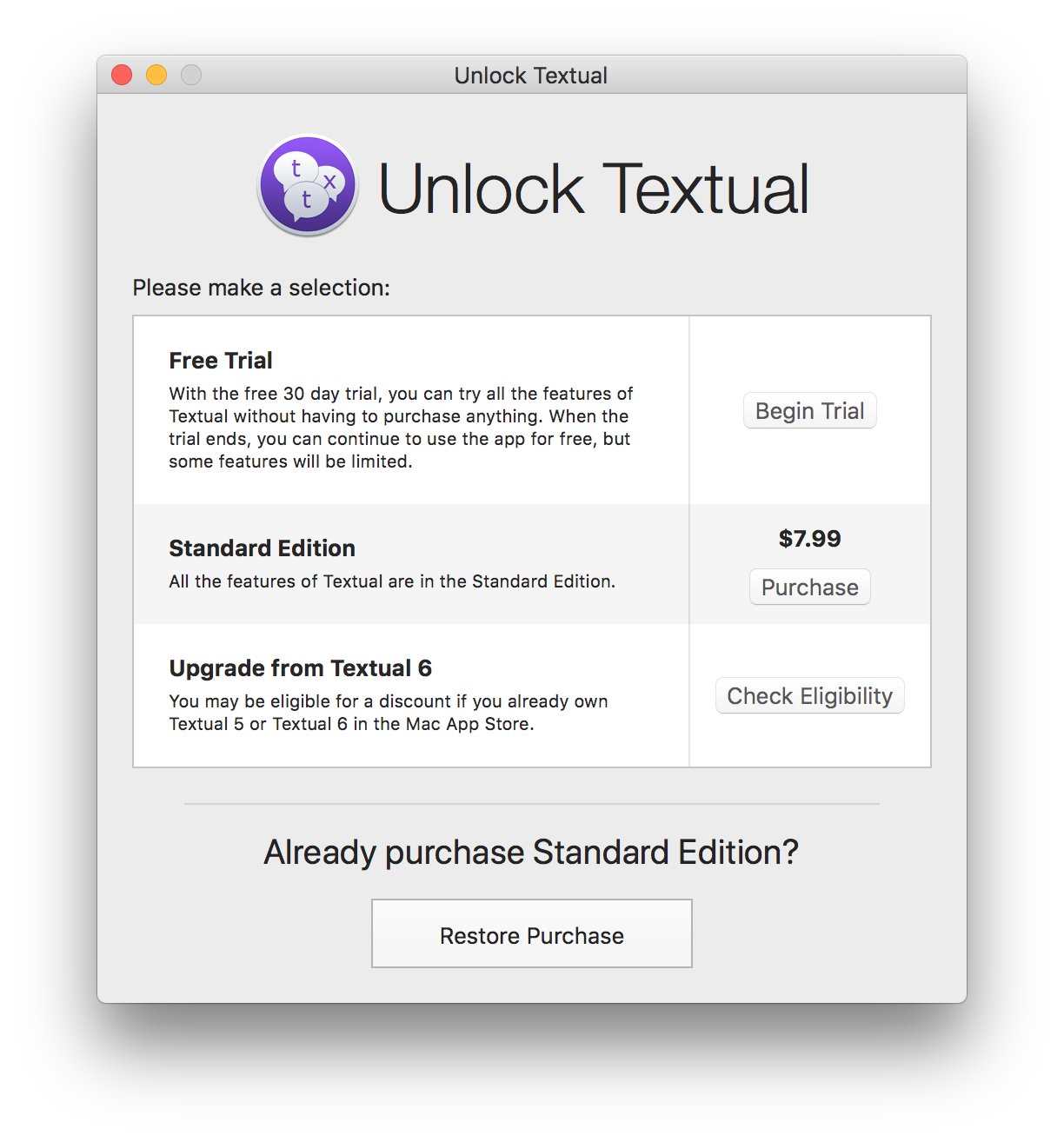
Note: If you open Textual and with the free trial already unlocked, this window will not automatically appear. To open it manually, navigate to the main menu in the top left corner of the screen, then open the bold Textual menu. Within this menu, click the menu item labeled In-app Purchase….
-
Inside this window, click the Check Eligibility button.
-
In the window that appears, select your copy of Textual 6.
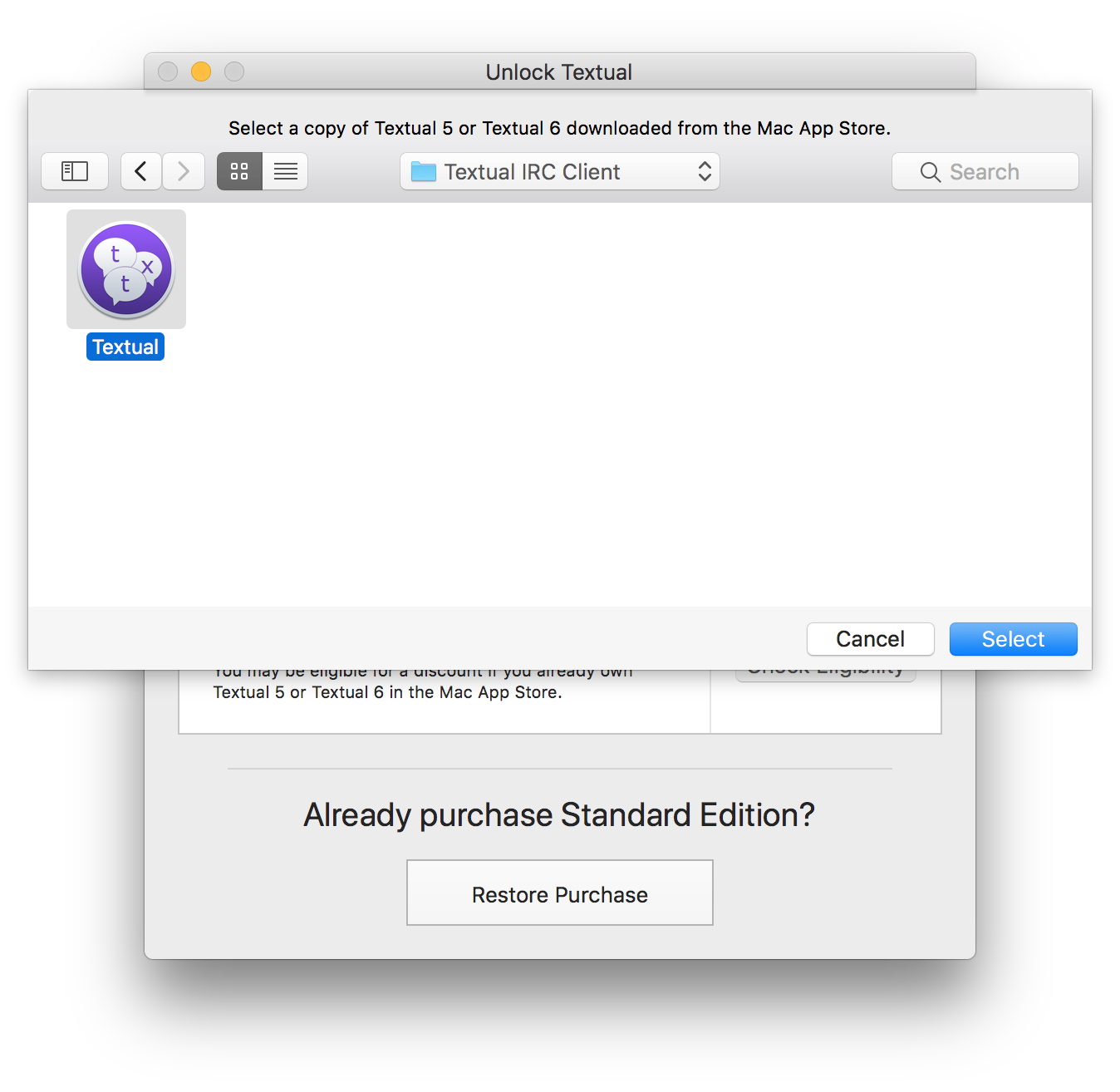
- Click the Select button to continue.
At this point, your copy of Textual 6 is sent to codeux.com for processing.
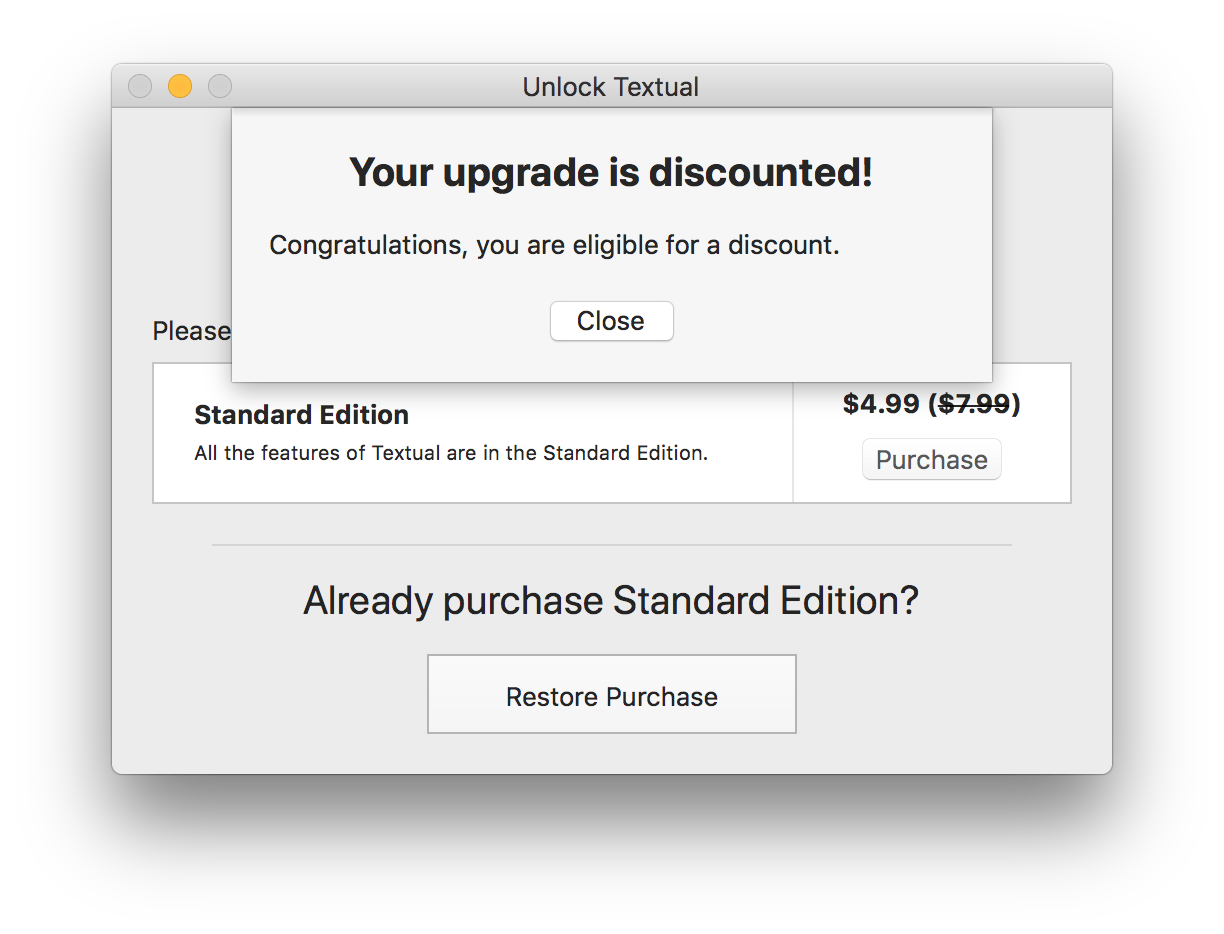
Once it has been processed, a window will appear to inform you of your eligibility, or you will be presented an error. See the Troubleshooting section of this guide for help understanding common errors.
Troubleshooting
The application “Some Application“ cannot be used to check upgrade eligibility
If you are asked to locate the copy of Textual downloaded from the Mac App Store and you are presented with this message when you select it, then a receipt could not be found.
Delete Textual 6 and download it again from the store.
See the Receipt Validation section of this guide for more information.
The copy of Textual that you selected failed validation
There was a problem verifying that you in fact own Textual.
See the Receipt Validation section of this guide for more information.
Troubleshooting: Receipt Validation
When you download Textual from the Mac App Store, the store creates a new file on your Mac, which is unique to you. This file is your receipt. When you follow the steps presented above to check eligiblity, this file, which does not contain any personality identifiable information, is sent to codeux.com to verify that it's valid.
Common actions, such as copying Textual from one Mac to another, will cause a receipt to be viewed as invalid.
If you are unable to check eligiblity because verification failed, then the easiest solution is to delete Textual 6 and download it again from the store. This will force the store to create a new receipt for you.
Textual 7 Upgrade - Standalone Version Discount Eligibility
This guide will instruct you how to check whether your purchase of Textual 6 is eligible for a discount.
This guide is related to the standalone version of Textual. Purchased the app in the Mac App Store? See this guide.
Prerequisite
If you have not done so already, then update to version 6.0.11 of Textual.
The steps presented below will not work with earlier versions of Textual.
Check Eligibility
To check eligibility, following these steps:
-
Open version 6.0.11 of Textual.
-
In the main menu, in the top left corner of the screen, open the Window menu. Within this menu, click the menu item labeled Upgrade Dialog.
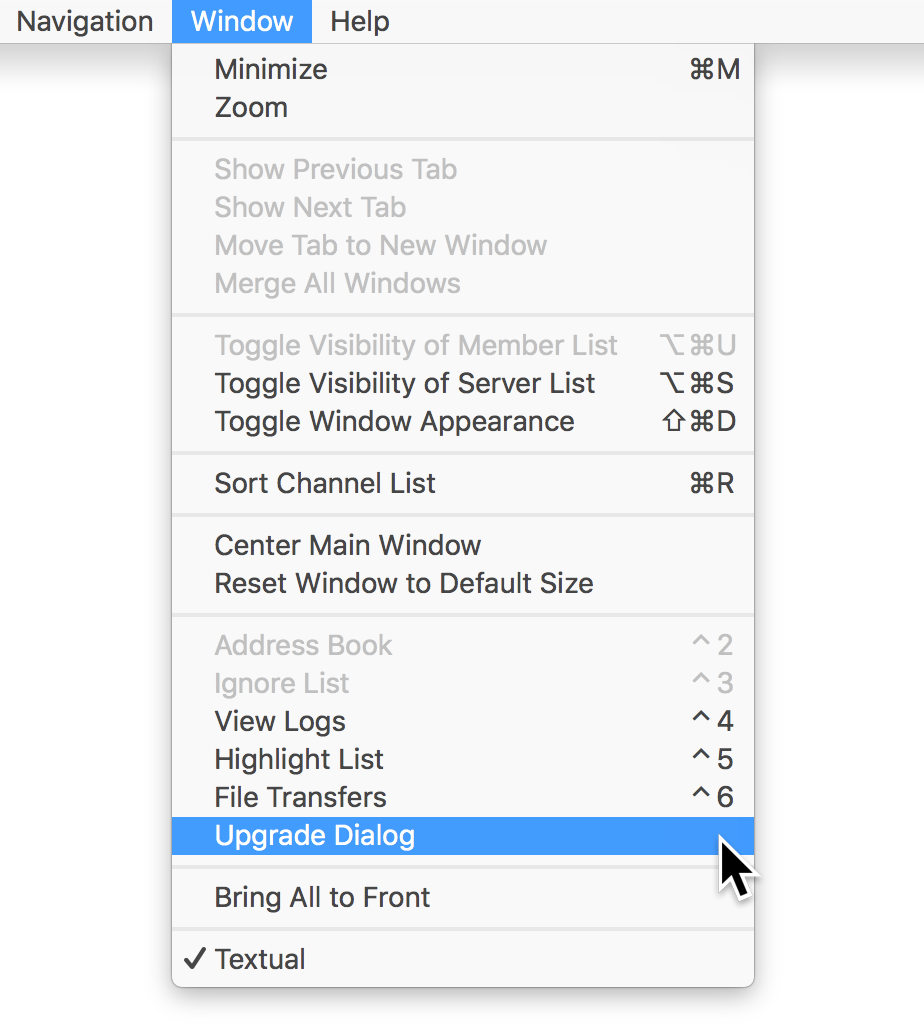
Once clicked, the following window will appear:
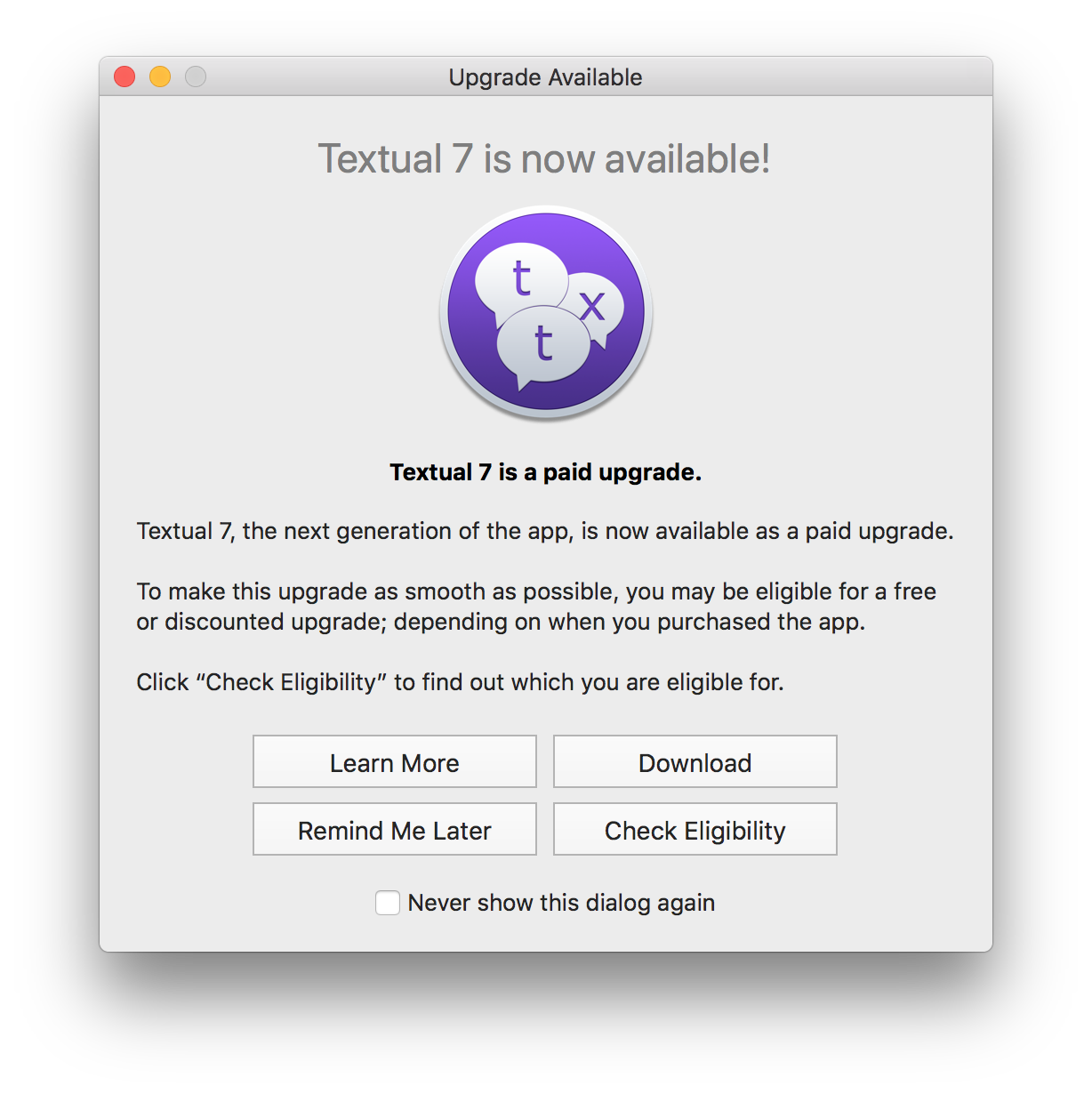
- Inside this window, click the Check Eligibility button.
At this point, your license key is sent to codeux.com for processing.
Once it has been processed, a window will appear to inform you of your eligibility.
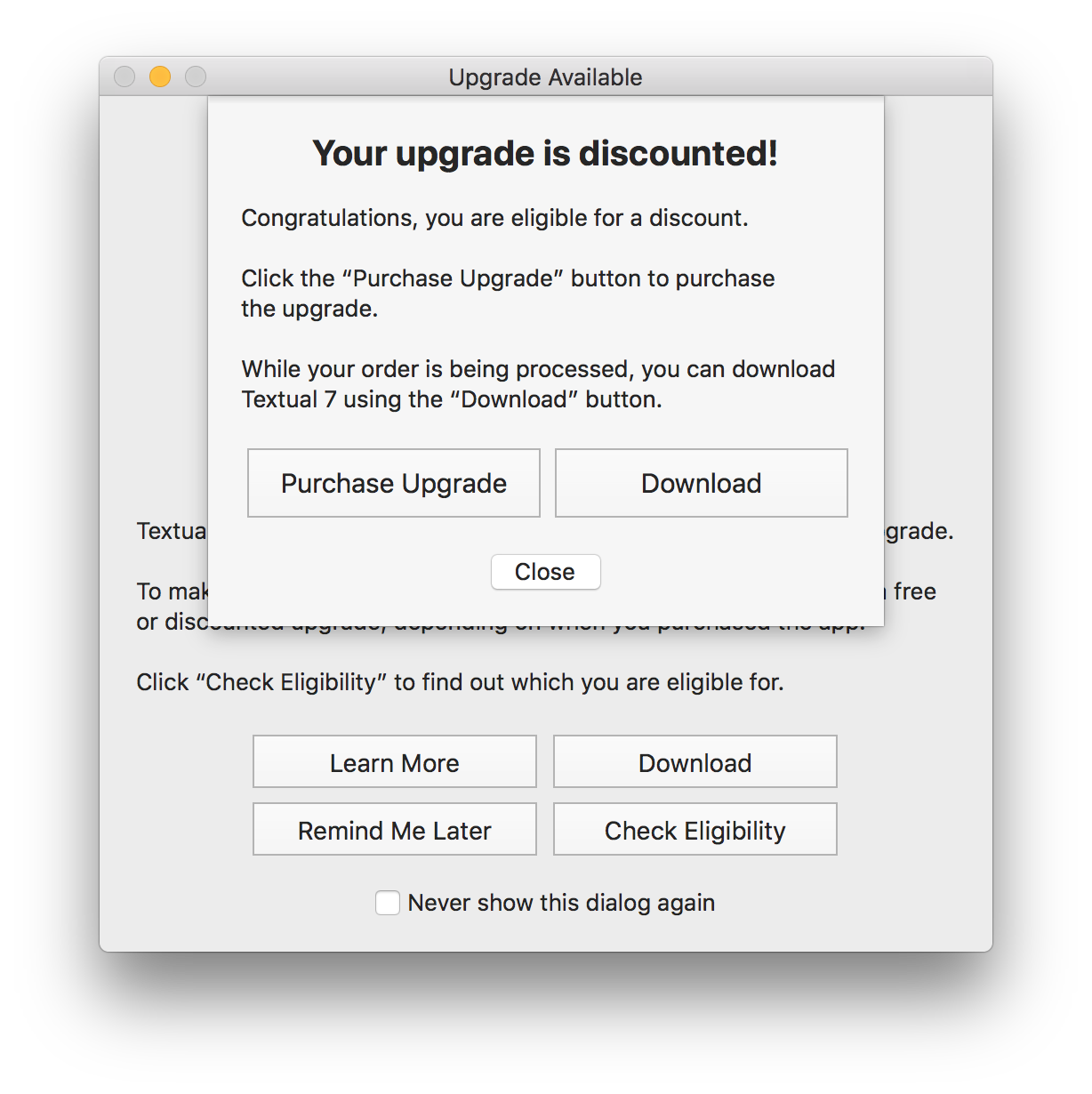
Textual 7 Upgrade - Frequently Asked Questions
Questions
How much does the upgrade cost?
The upgrade is free if you purchased Textual on or after June 15, 2017 at 00:00 UTC. The upgrade is discounted if you purchased Textual prior to June 15, 2017 at 00:00 UTC.
See the next question to learn how to check which you are eligible for.
How do I receive a discounted upgrade?
Please select from one of the following choices:
Guide for Mac App Store Version
Can I try Textual 7 before I purchase the upgrade?
You can try Textual 7 for 30 days without purchasing anything.
To try it before you choose to purchase the upgrade, select from where you want to download it:
the standalone download or Mac App Store (this store offer has ended; see current licensing guidance)
Related topic: What's the difference between the Mac App Store version and the standalone version?
Why is Textual 7 a paid upgrade?
Without this upgrade, it would no longer be possible for Textual to be maintained full time.
What makes Textual 7 worth it?
When you purchase Textual 7, you are doing more than paying for its first release. You are investing in the future of the app and the many improvements that are planned for it.
For a complete list of changes in Textual 7, see:
For a complete list of planned improvements, see:
How many paid upgrades will there be?
Not too many. In seven years, there have only been two paid upgrades, one of which is Textual 7.
What will happen if I do not upgrade?
If you choose not to upgrade, then please take note of the following:
-
Your purchase of Textual 6 will not disappear. You can continue using it.
-
Textual 6 will no longer receive maintenance updates.
-
Textual 6 will continue to receive security updates until September 2018.
-
Textual 6 will continue to receive technical support until September 2019.
Source material
Original Codeux material preserved from the knowledgebase snapshot of 9 September 2026. Formatting and internal links have been adapted for this site.
Need a hand? Contact us about this guide.