
Textual Extras installing to the wrong location
Historical reference: choosing the Textual Extras installation location.
A reference from an earlier chapter
This material preserves the original Textual documentation and may describe older versions, former services, or superseded policies. It is not a statement of current availability or new Blendbyte commitments.
For current guidance: ZNC, sleep, and staying connected, Stopping your Mac from Going to Sleep.
Current guidance: Since Textual 7.2.4, Caffeine is loaded with Textual and no longer needs the Extras installer. These steps describe the former installer. See ZNC and staying connected.
This guide will instruct you how to configure the “Textual Extras” installer to install files in the correct location.
Steps
- Launch the “Textual Extras” installer by entering
/getscriptsinto the main input text field.
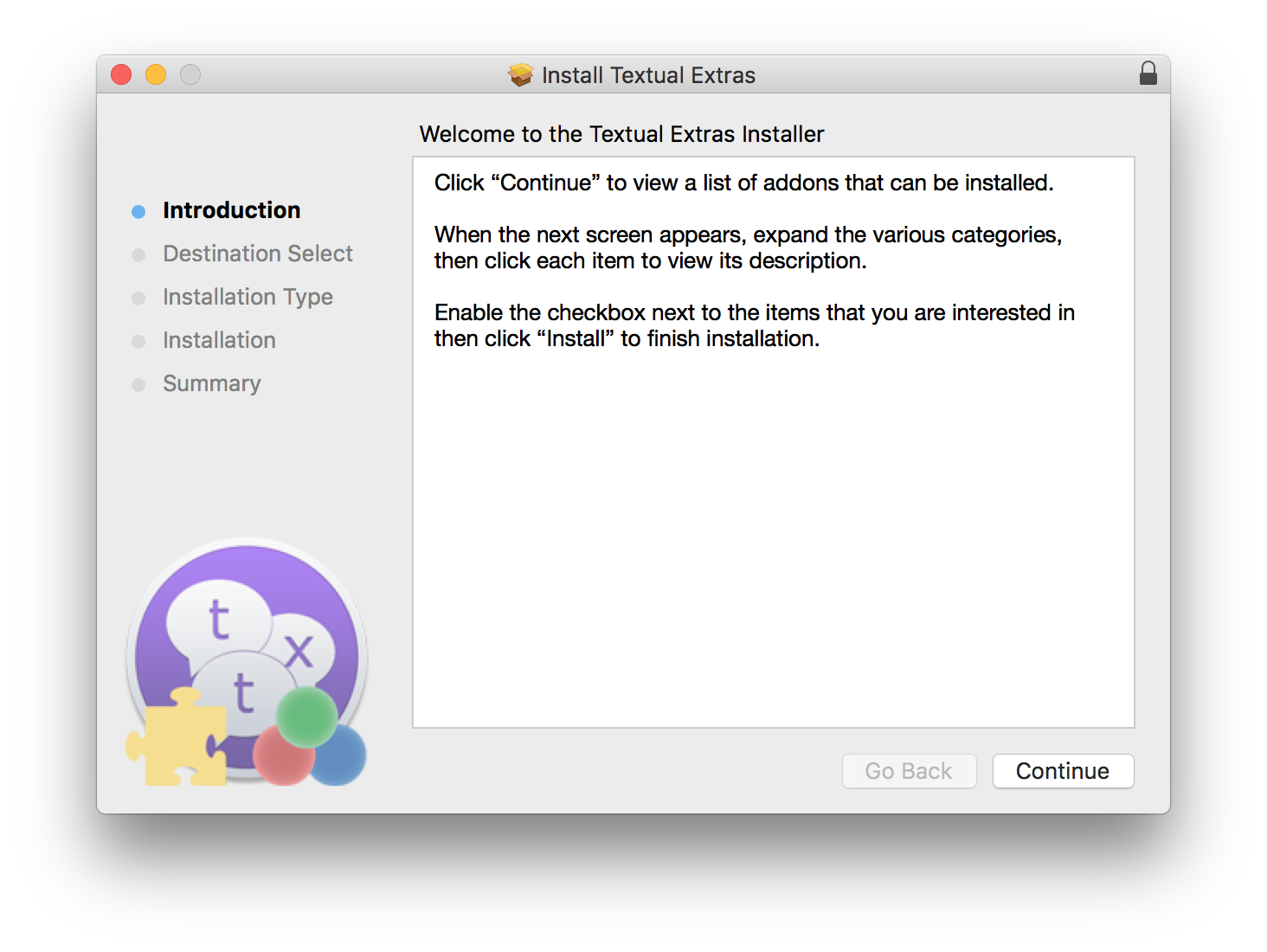
An installer that is visually similar to the following will appear:
-
Click Continue to reveal a list of addons that can be installed.
-
Select the addons that you want to install.
-
Click Continue
In the next screen, click Change Installation Location… in the bottom right corner of the installer.
This will reveal a screen that is visually similar to the following:
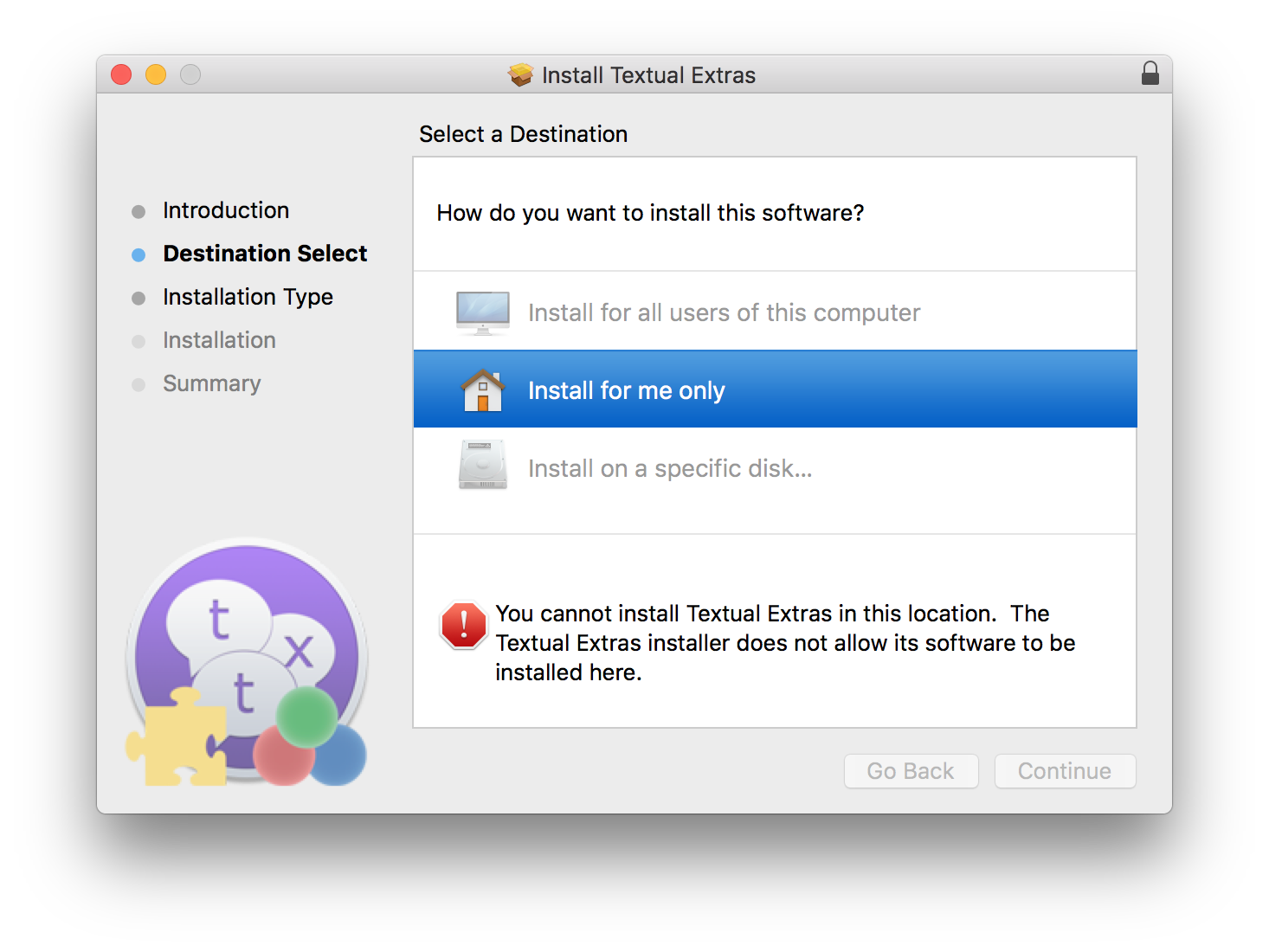
- Click Install for me only
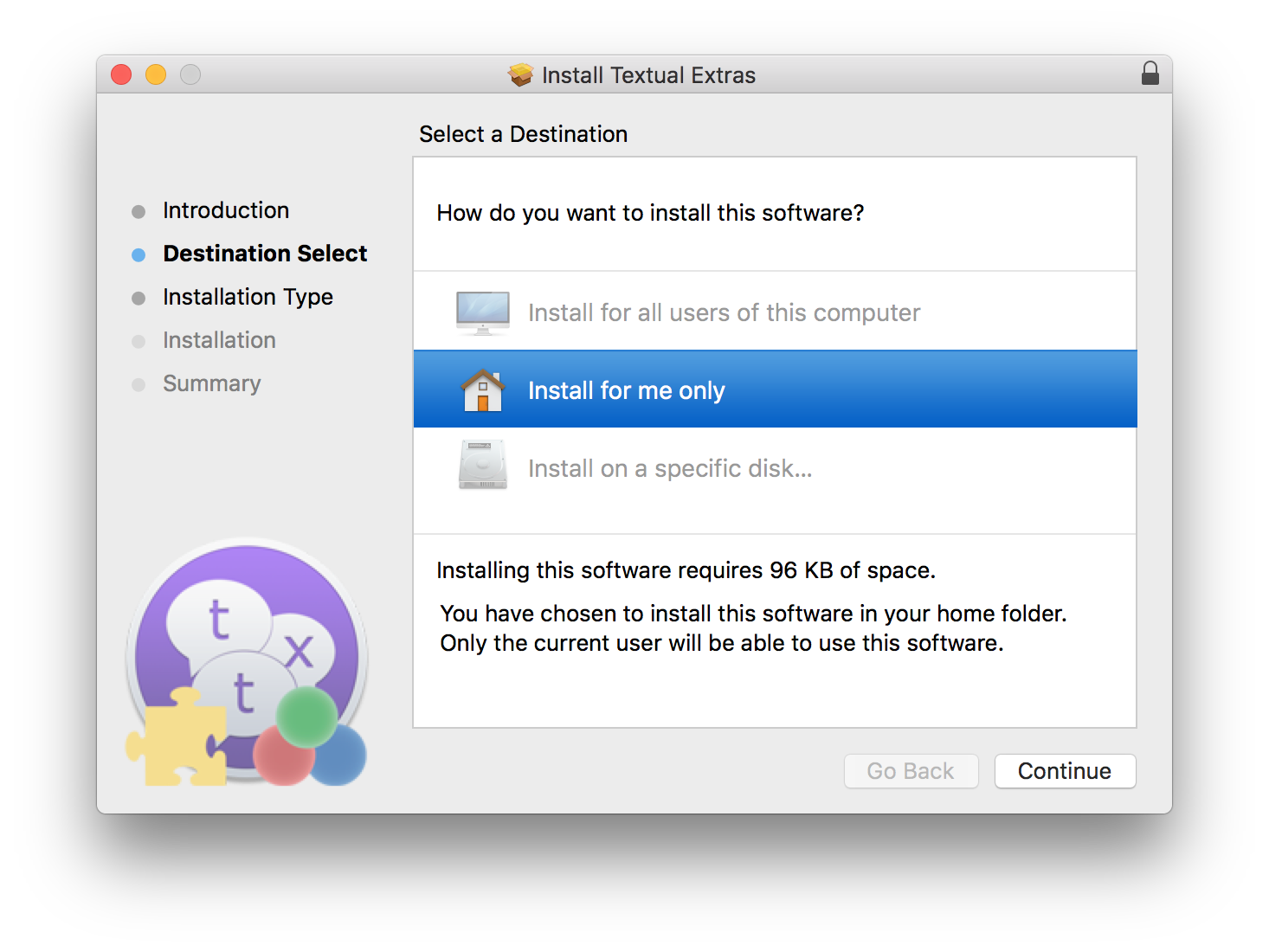
The installer will update the screen to confirm your selection:
-
Click Continue and follow-through with the remainder of the installation.
-
Restart Textual if necessary.
Keep reading
Source material
Original Codeux material preserved from the knowledgebase snapshot of 9 September 2026. Formatting and internal links have been adapted for this site.
Need a hand? Contact us about this guide.