
Create License Key from Mac App Store Purchase
Historical reference: create License Key from Mac App Store Purchase.
A reference from an earlier chapter
This material preserves the original Textual documentation and may describe older versions, former services, or superseded policies. It is not a statement of current availability or new Blendbyte commitments.
For current guidance: Licences and the App Store transition.
On this page
Current guidance: This archived guide describes the former conversion service. Migration to standalone remains under consideration and is not currently available through Blendbyte's licensing service. Keep your installed Mac App Store copy and its receipt, and back up your preferences separately. Download availability and recovery through the former service are not guaranteed. See current licensing guidance.
The historical workflow below explains how Mac App Store owners requested a standalone licence key.
Prerequisite
Before we begin, make sure you have the following:
-
A copy of Textual downloaded from the Mac App Store somewhere on your Mac. To download a new copy, access the Purchases section of your Mac App Store account.
-
A copy of Textual downloaded from the Textual website (the “standalone version”)
Download the Standalone Version
Create License Key
To create your license key, following these steps:
-
Open the standalone version of Textual.
-
In the main menu, in the top left corner of the screen, open the bold Textual menu. Within this menu, click the menu item labeled Manage license…
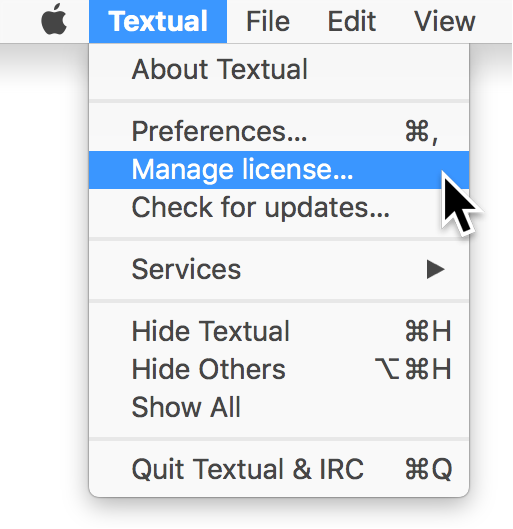
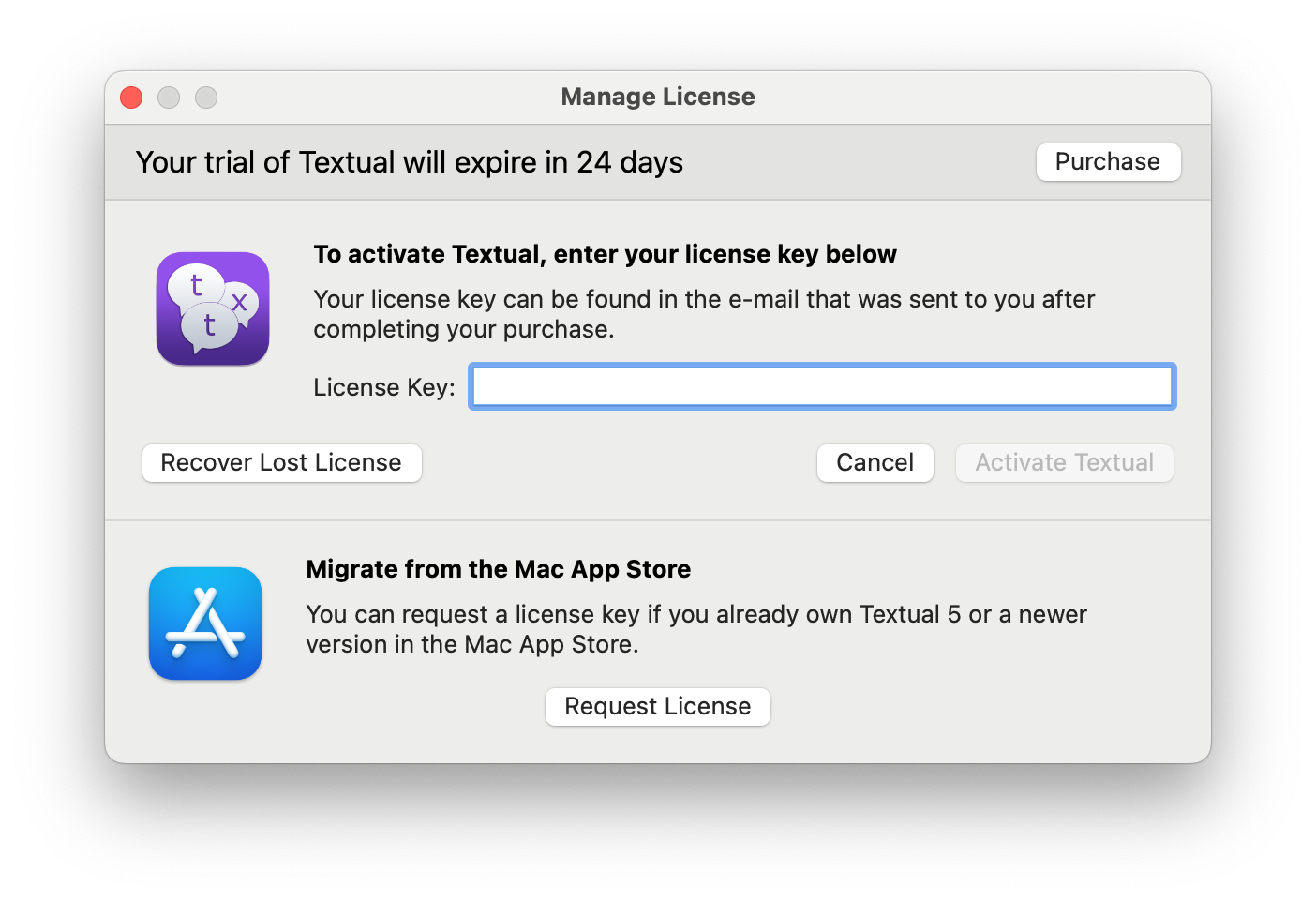
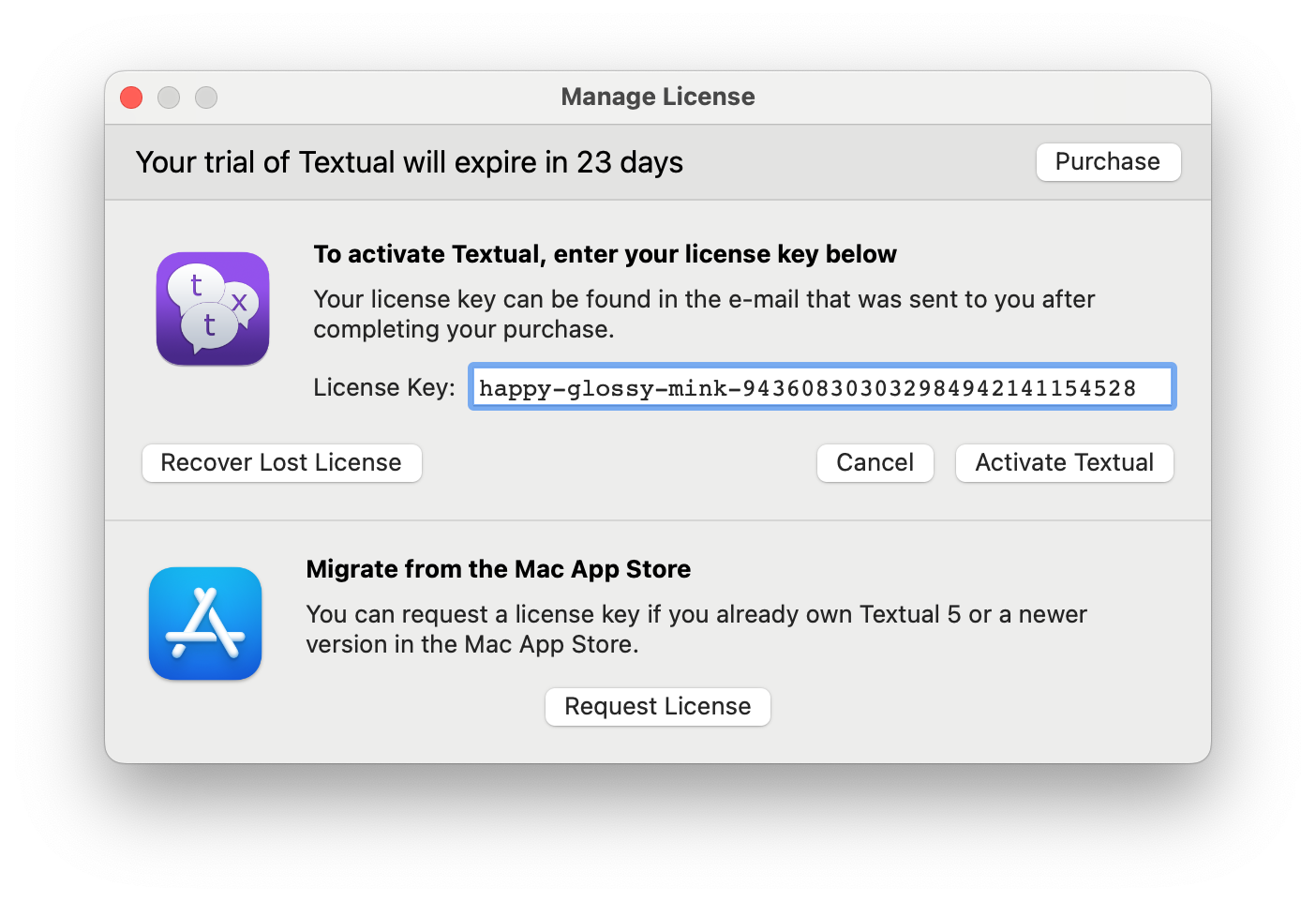
Once clicked, the following window will appear:
-
Inside this window, click the Request License button.
-
In the window that appears, enter the information that you want associated with your license key.
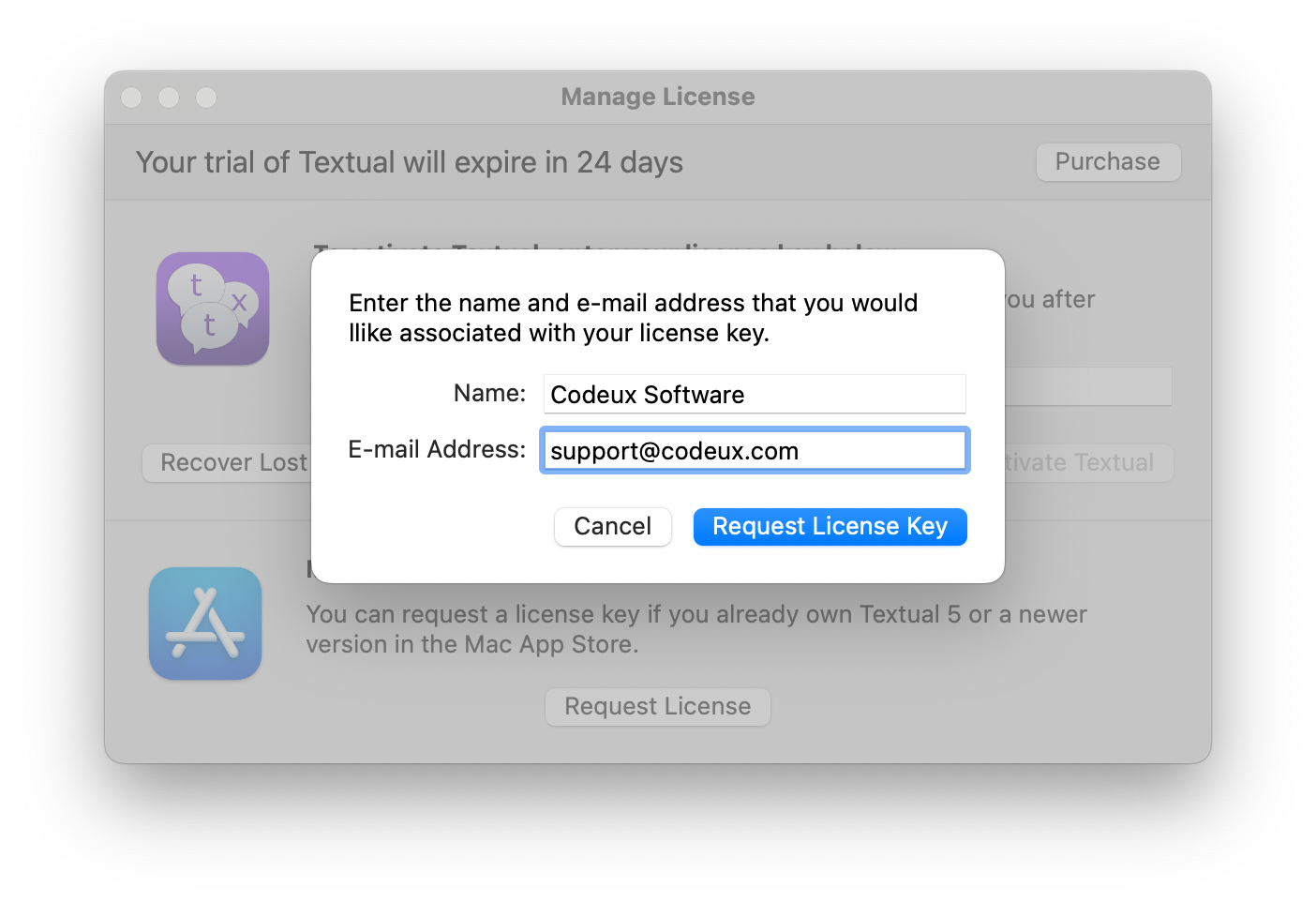
- Click the Request License Key button to continue.
If the request was successful, then you will be informed of that fact. Otherwise, an error will appear. See the troubleshooting section of this guide for help understanding common errors.
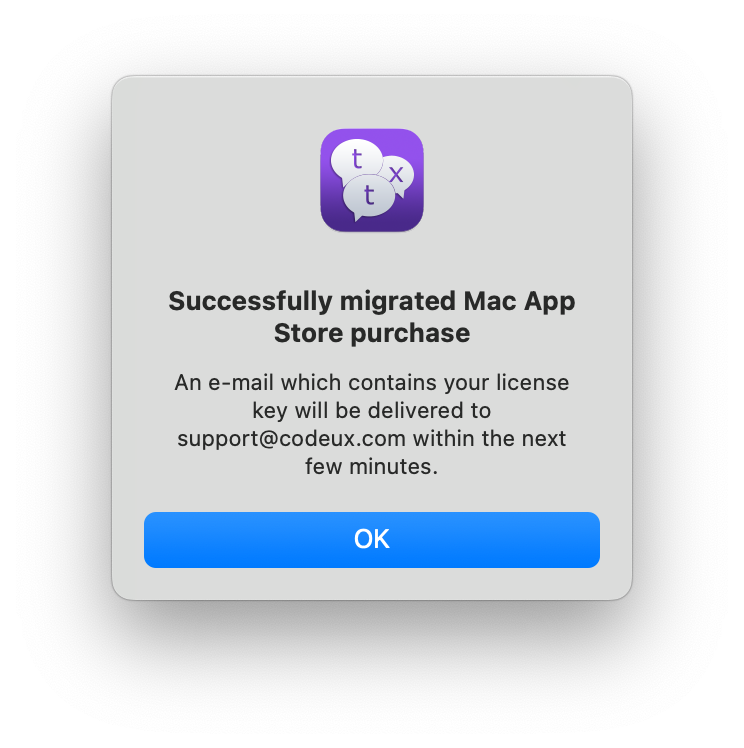
Your license key will arrive by e-mail within a few minutes:
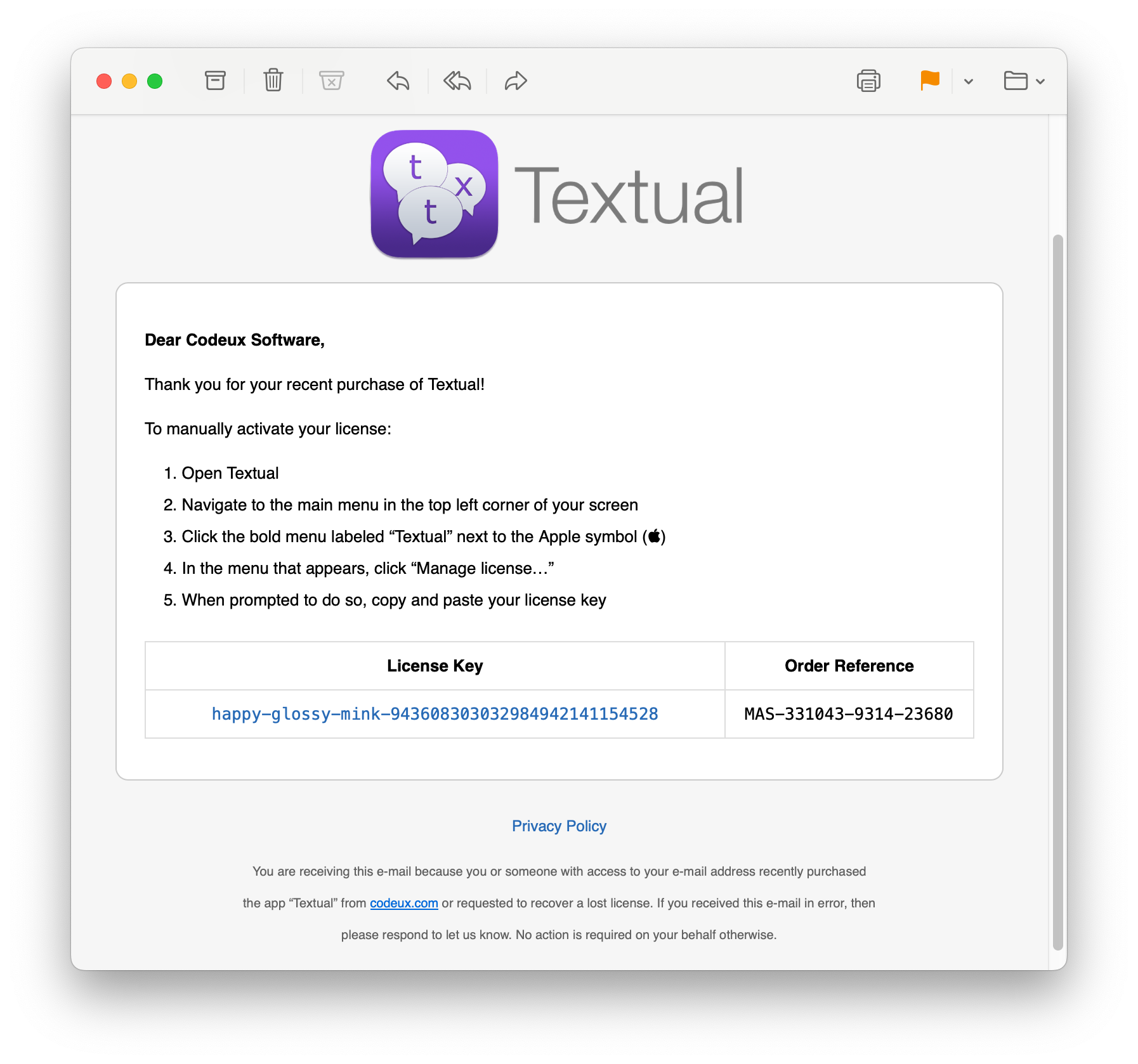
- When your license key arrives, enter it into the activation text field, then click the Activate Textual button.
Once activated, your license information will be presented to you:
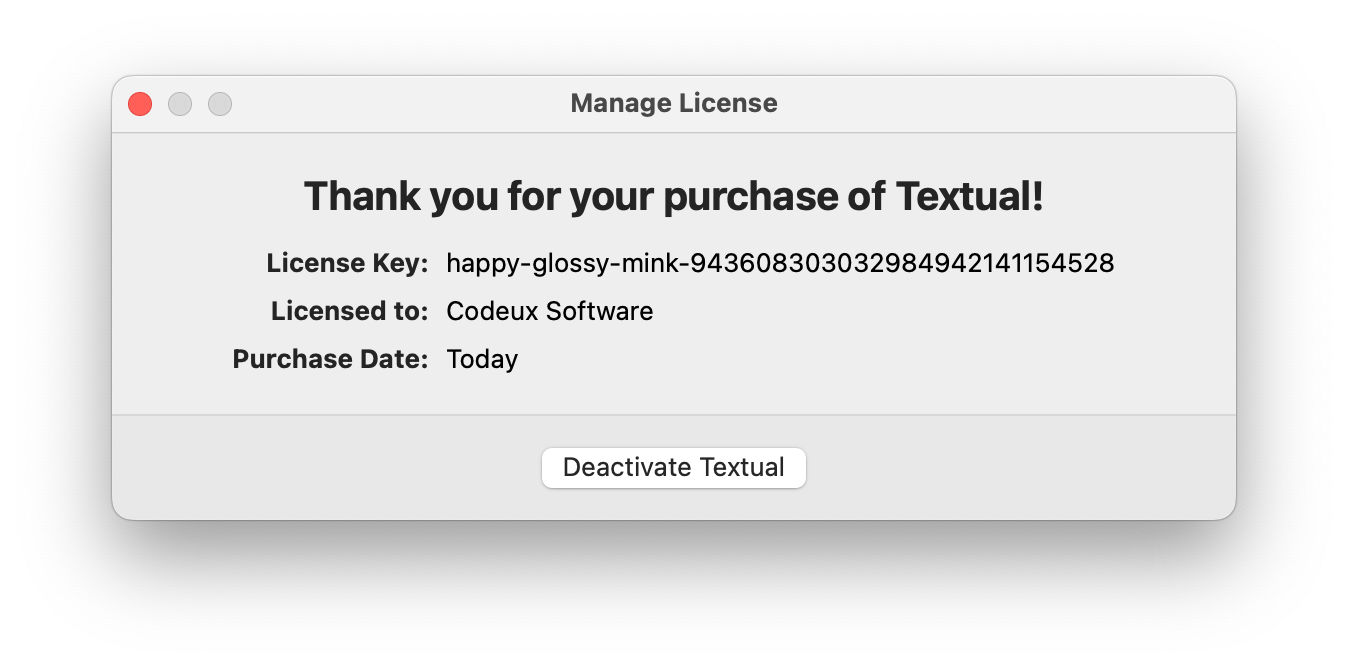
There is nothing more to do at this point. Your license key is now tied to your Mac App Store purchase and can be recovered at any time by clicking the Recover Lost License button.
Common Errors
The application “[...]“ cannot be used to request a license key
If you are asked to locate the copy of Textual downloaded from the Mac App Store and you are presented with this message when you select it, then a receipt could not be found.
The original troubleshooting advice was to delete Textual and download it again. Do not delete your working copy: another download may not be available. Preserve the app and its receipt, then contact support.
See the Receipt Validation section of this guide for more information.
Receipt did not pass validation because of the following error: [...]
There was a problem verifying that you in fact own Textual.
See the Receipt Validation section of this guide for more information.
Troubleshooting: Receipt Validation
When you download Textual from the Mac App Store, the store creates a new file on your Mac, which is unique to you. This file is your receipt. When you follow the steps presented above to create a new license key, this file, which does not contain any personal, identifiable information, is sent to codeux.com to verify that it is authentic.
Common actions, such as copying Textual from one Mac to another, will cause a receipt to be viewed as invalid.
The former service recommended downloading a fresh copy to obtain a new receipt. Continued downloads are not guaranteed, so keep your existing app and receipt. You can check the Purchases section by clicking your name in the bottom left corner of the App Store app, but do not delete your working installation to try this.
Keep reading
Source material
Original Codeux material preserved from the knowledgebase snapshot of 9 September 2026. Formatting and internal links have been adapted for this site.
Need a hand? Contact us about this guide.